Most of the worry about scanning answer sheets with a phone is not about speed. It is about trust. If a machine reads a sheet wrong, a student loses marks they earned, and the teacher finds out when a parent rings.
So the part of ScanScore worth learning properly is not the camera. It is the screen that comes after it — the one that shows you what was read, lets you disagree with it, and only then saves the marks.
What the result screen shows
A sheet takes about four seconds. What comes back is a single screen holding everything you would otherwise have had to check by hand.
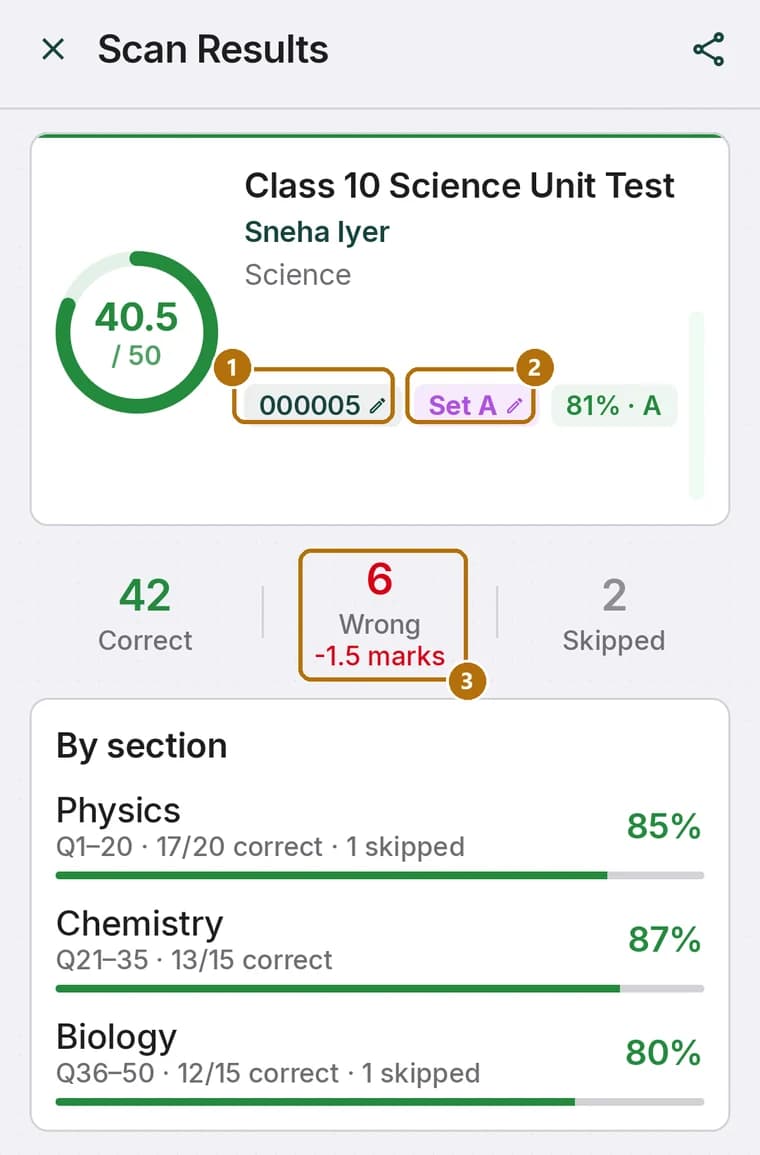
- The score and the grade, as a ring you can read from across a desk.
- The roll number 1, read from the bubble grid — and the student's name, if the exam is linked to a class.
- The set 2, read from the set-code bubble, so a Set B sheet is never marked against Set A's key.
- Correct, wrong and skipped, with the negative marking shown as its own figure 3 — here, six wrong answers at a quarter mark each is the −1.5 that turns 42 correct into 40.5.
Nothing is hidden behind a tap. If the number at the top is wrong, something on this screen will say so.
Roll number and set
Both are read from bubbles, not handwriting, and both have a pencil icon next to them. Tap it and type. This is the single most useful correction on the screen, because the two things a student is most likely to get wrong on an OMR sheet are the roll number grid and the set bubble — they are filling those in before the exam has settled down, often in a hurry.
The marked-up sheet
Below the numbers is the photo of the sheet itself, with the app's reading drawn over it: a green ring on every bubble it counted as correct, red on every wrong one, and amber where it found more than one bubble filled in a single row.
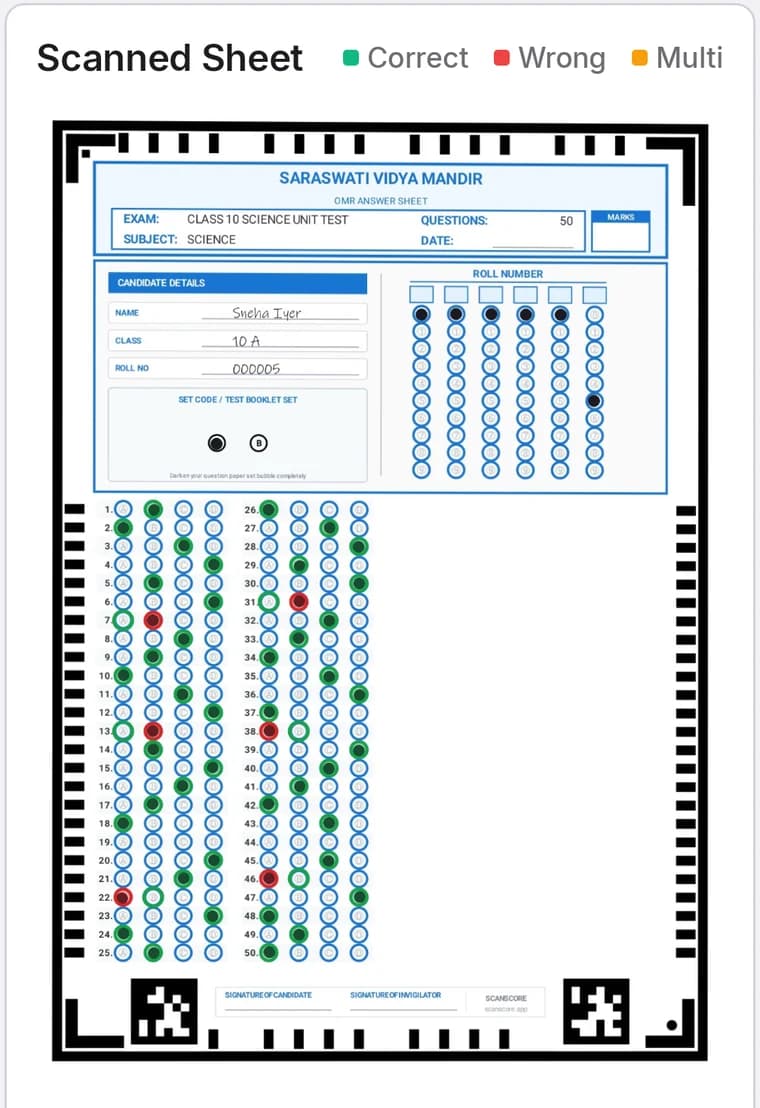
This is the picture to hand a student who disputes a mark. It is their sheet, their handwriting in the name row, and every bubble the app read is circled. Arguments about marking tend to end here.
Reviewing answer by answer
Under the sheet is Answer Review: every question with what the student put and what the key says, filtered with one tap to All, Correct, Wrong or Skipped.
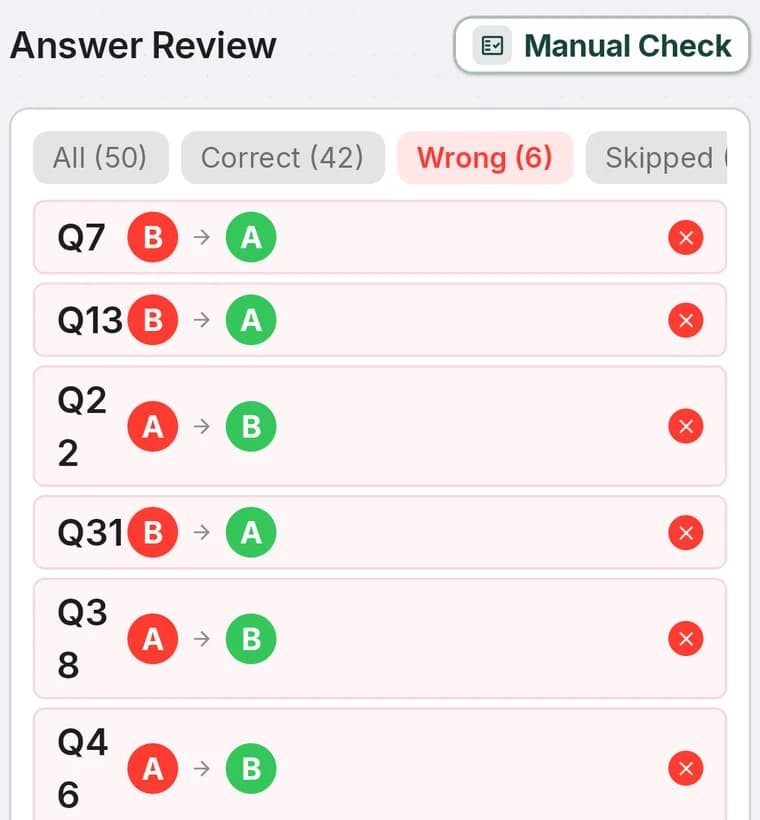
In practice you almost always tap Wrong. On a 50-question paper that turns a wall of fifty rows into the six that are worth two seconds of your attention — and if one of those six is a question you know the student got right, you have found your error before it became a complaint.
Fixing one by hand
Tap Manual Check and the list becomes editable. Tap the letter the student actually marked; tap it again to clear the answer entirely. Tap Done Checking and the score is recalculated on the spot — including the negative marking.
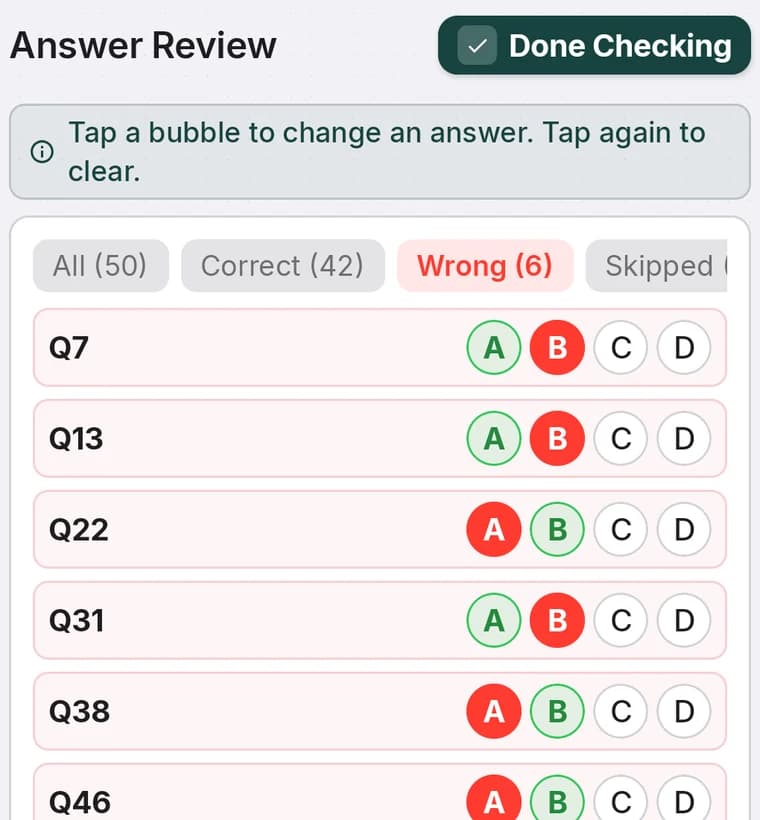
The honest reason this exists is smudges. A student rubs out an answer and the graphite stays; a bubble is filled with a tick instead of being darkened; two bubbles get a light mark each. No reader, human or otherwise, can be certain what was meant. The app makes its best reading, flags it, and leaves the decision where it belongs.
When marks land in the wrong place
Occasionally a result looks nonsensical — a strong student with a very low score, and a marked-up sheet where the green rings sit a row off. That is nearly always the crop: the photo did not catch all four printed corner marks, so the grid was fitted slightly wrong.
Under the sheet is Marks in the wrong place? Adjust crop. Drag the four corners onto the printed marks and the sheet is read again. If the photo itself is poor, Rescan sheet is next to it.
A sensible checking habit
Checking every sheet defeats the point of scanning them. Checking none is how a bad batch of printing goes unnoticed. What works for most teachers:
Check the first two properly
Open the marked-up sheet and compare a few answers by eye. This confirms the print, the key and the lighting all agree. If the first two are right, the batch is right.
Then watch the wrong count
Scan the rest in batch mode and let the numbers go by. A sheet with far more wrong answers than its neighbours is the one to open — it is either a genuinely weak paper or a misread, and either way you want to know.
Let the class tell you about the key
If twenty students all got the same question wrong, suspect the key before you suspect the class. The item analysis on the results screen surfaces exactly that, and lets you cancel the question from there.
Scanning and marking happen on the phone, so all of this works with no internet and no account, and nothing is uploaded unless you turn backup on yourself. The sheet photo is kept with the result, which means a re-check three weeks later still has the evidence attached.