You can use ScanScore without ever making a class. Scanning works with no account, no roster and no internet, and the results come back listed by roll number. For a one-off test that is genuinely enough.
What a class adds is a name against every mark, and a history that outlives the exam. What an organisation adds is the same thing across a staff room, so the principal does not have to ask six teachers for six spreadsheets.
Why a roster is worth the ten minutes
A roll number is a fine way to mark a paper and a poor way to run a term. With a class linked to the exam you get:
- Names on the rank list, instead of “Roll 1”, so the result sheet is readable by anyone who was not in the room.
- A page per student that accumulates every exam they sit, with an average that means something by the third test.
- Attendance for free — the roster knows there are forty students and the scanner knows thirty-six sheets came back.
- A progress report you can hand to a parent without assembling anything.
Making a class
The Classes tab, then Create Class. A name and a colour tag, and that is the whole form — “Class 10 A”, “Physics Batch”, “NEET Morning”, whatever you actually call them. The colour is what makes the list scannable once you have eight of them.
Three ways to fill the roster
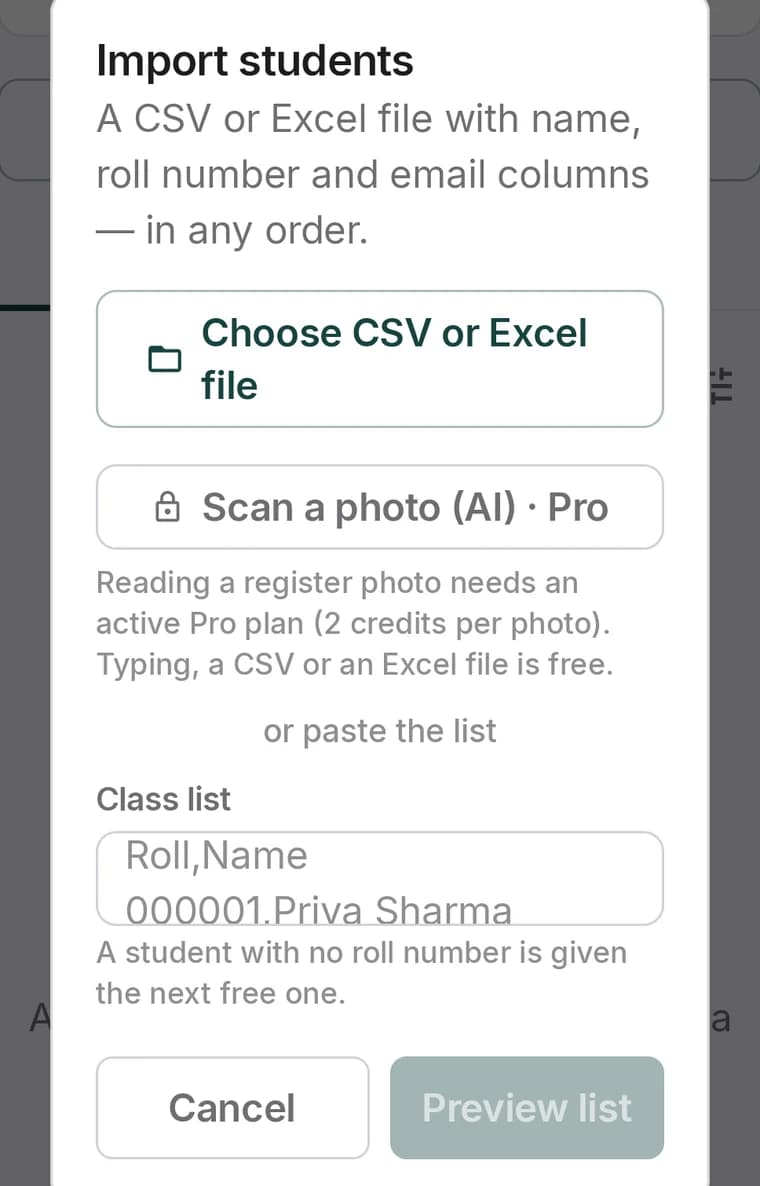
A CSV or Excel file
The quickest if the school already has the list. Two columns — roll number and name — are all it needs, and an email column is optional. Most school systems export this in two clicks.
Photograph the register
Point the camera at a printed attendance register and the AI reads the names and roll numbers out of it. Needs a Pro plan and costs a couple of credits per photo — worth it the one time you are setting up a class you have no file for.
Type or paste
Paste roll,name lines straight in, or add students one at a time. A student with no roll number is given the next free one.
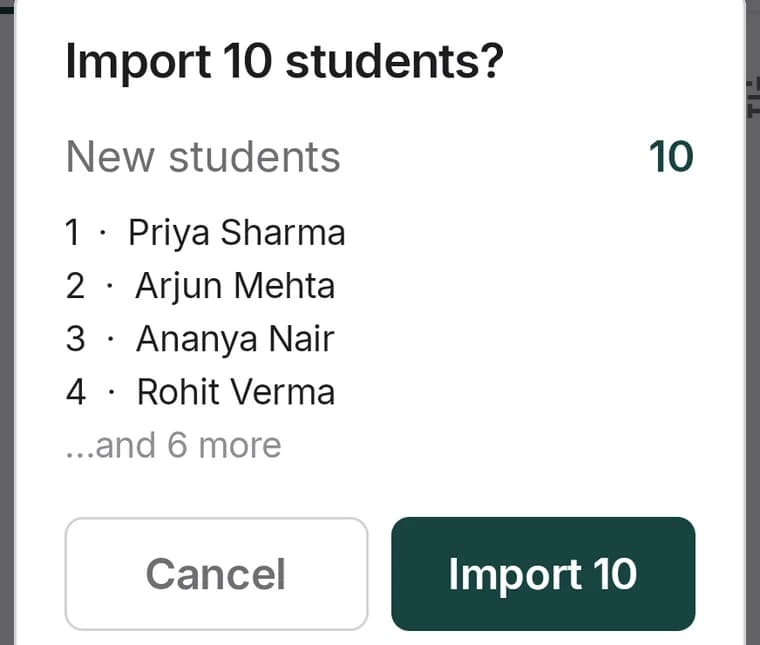
Whichever route you take, nothing is written until you have seen it. The preview says exactly how many new students it found and names the first few.
Linking a class to an exam
This is the step people miss. A class exists, an exam exists, and the two have not been introduced — so the results still read “Roll 1”.
You can do it while creating the exam, at the Class & Scoring step, or afterwards: Edit exam, open Organisation & Class, and pick the class.
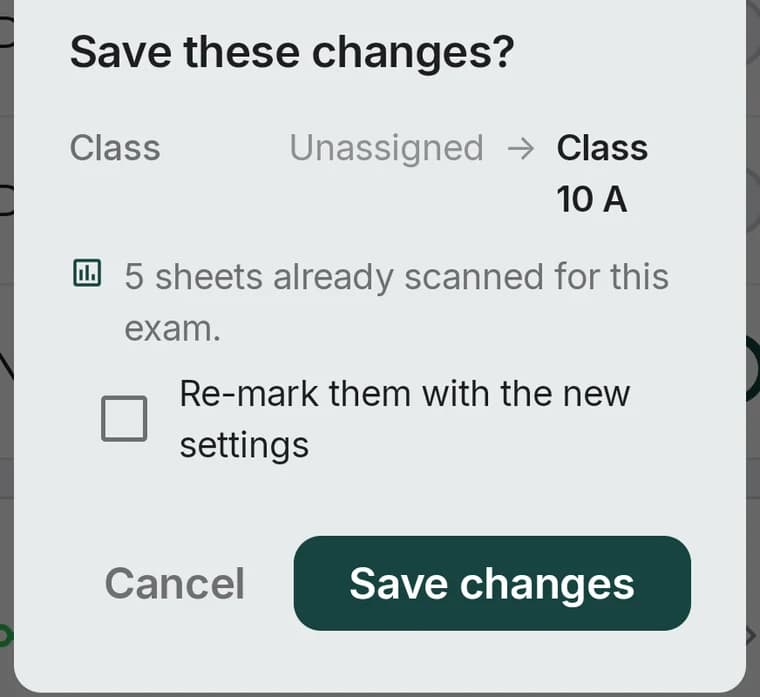
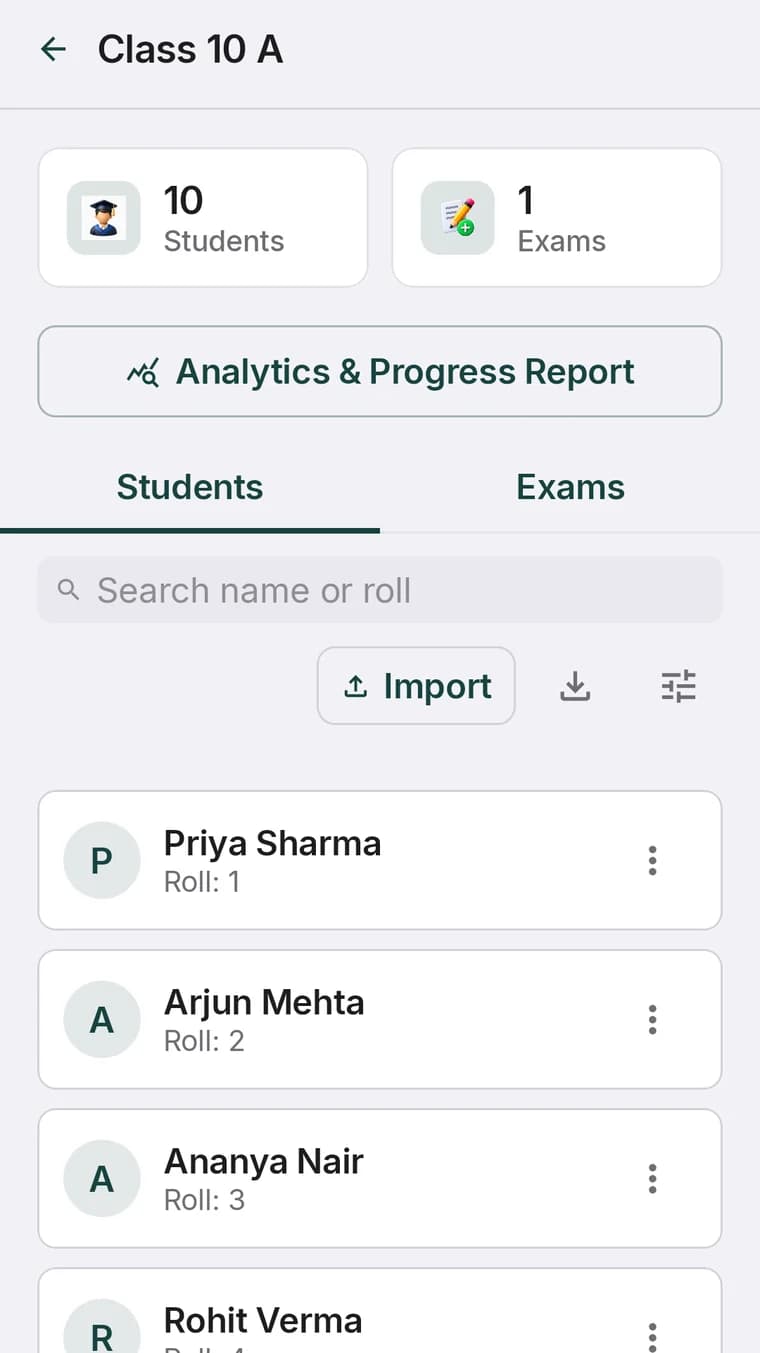
That offer to re-mark is the important bit. You do not have to decide about classes before you scan — link the class whenever you get round to it and the marks already in the app reorganise themselves. The rank list then shows names, and each student's page picks up the exam.
What a student page shows
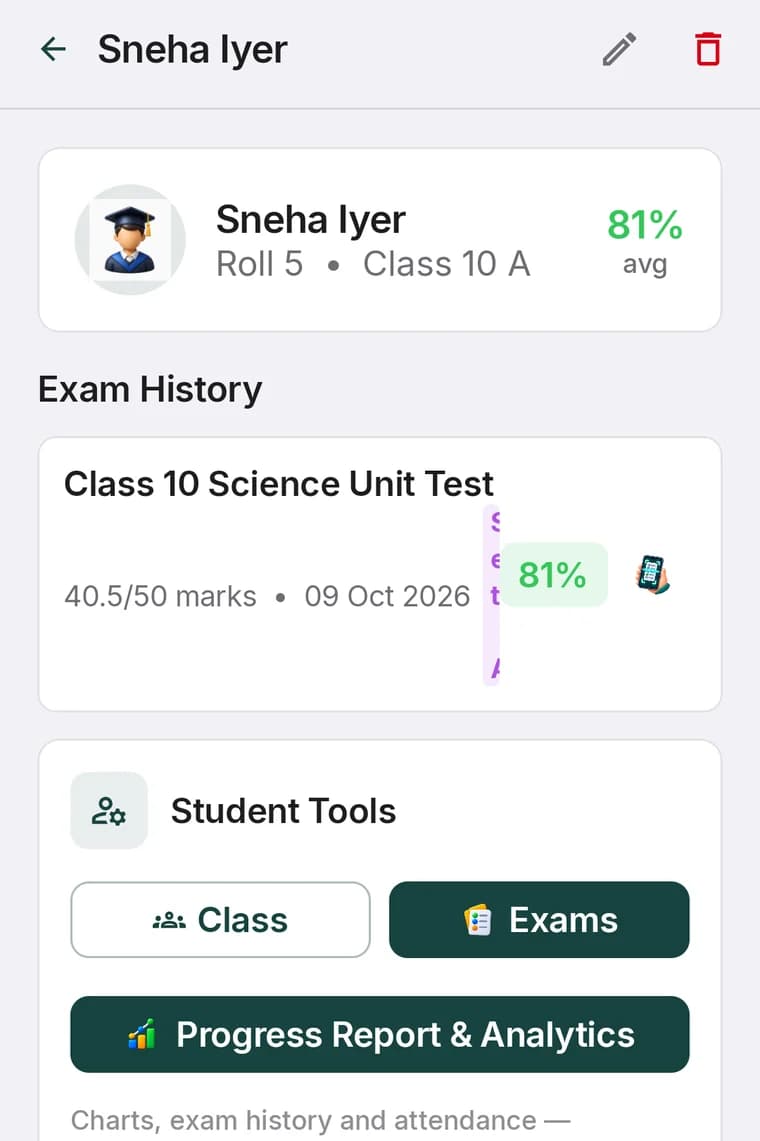
Exam history builds up on its own — every sheet scanned with that roll number appears here, with the marks, the percentage, the set and a shortcut to rescan. Three tests in, this page answers “is this child improving?” faster than any register.
Progress Report & Analytics turns it into something you can hand over: averages, best score, attendance, exams sat, charts and history, with control over what the report includes.
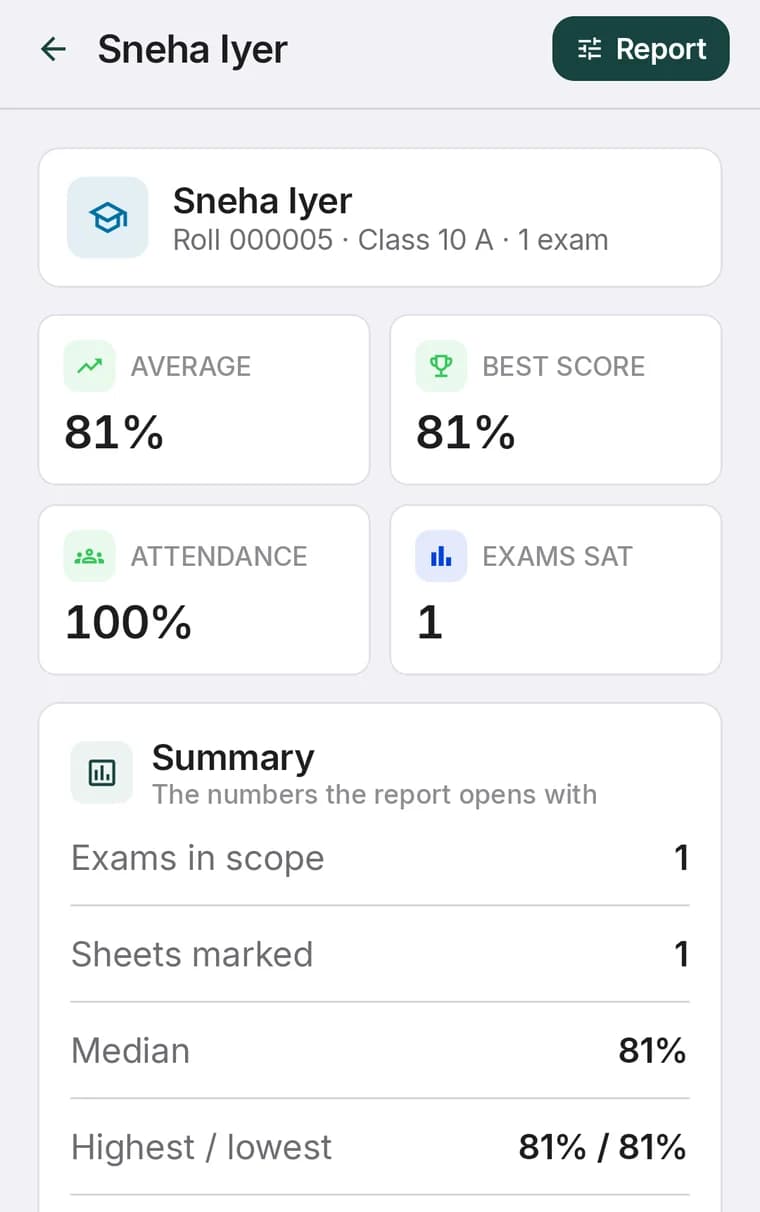
Class analytics and attendance
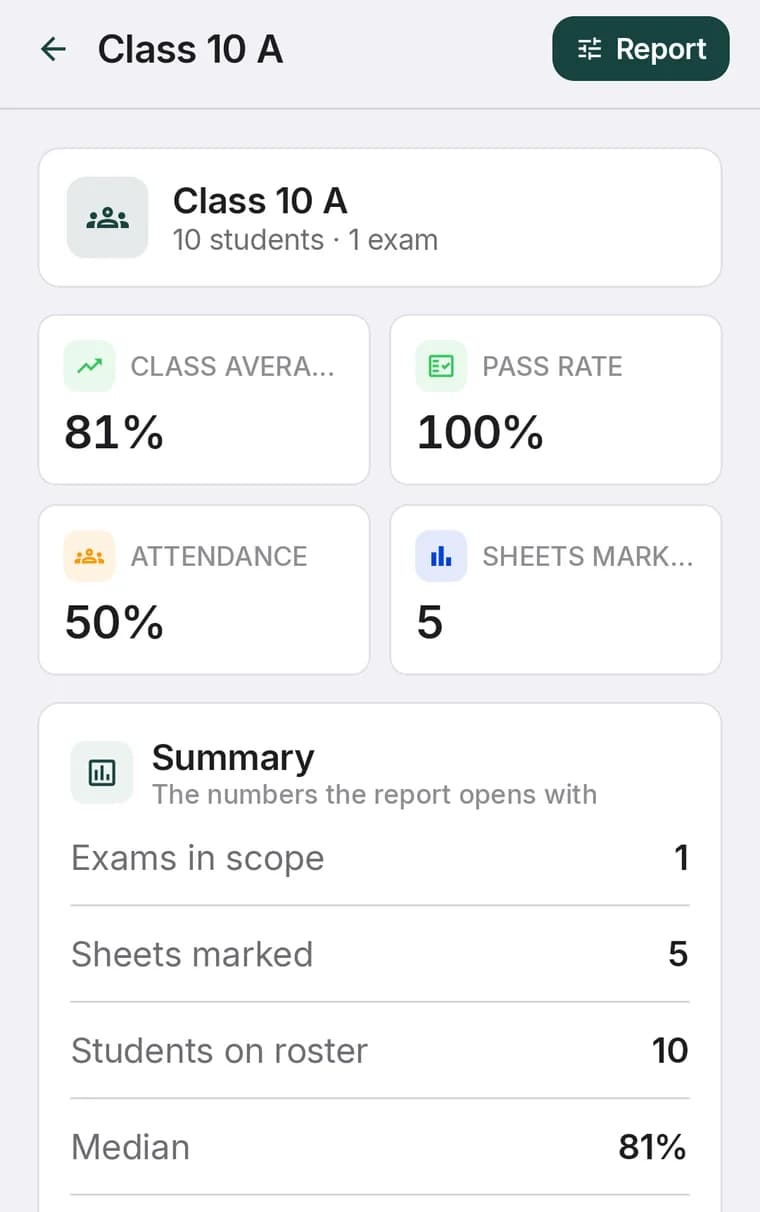
The class-level report is the same idea one level up — class average, pass rate, median, and an attendance figure that is simply sheets marked against students on the roster. If that number is lower than you expected, either students were absent or sheets went missing, and both are things worth finding out on the day rather than at the end of term.
For the per-exam version — rank order, the spread, and which questions the class got wrong — see the class result analysis guide.
When one teacher is not enough
Everything above happens on one phone, free, offline. It stops working the moment there is more than one teacher, because each phone knows only its own exams. That is the problem an organisation solves.
An organisation account gives a school, college or coaching centre:
- One live view of everything. Every teacher's exams, classes and marks in one place, updating as sheets are scanned, in the app and in a browser.
- A join code. Staff enter it and link themselves; you are not creating accounts for people.
- A seat per person that you give, pause or take back as staff change.
- Parent and student access. The teacher shares a student code; the family enters it once and sees that student's scanned exams and online tests with averages over time. One login can follow more than one child.
- Your name, logo and colours on everything families see.
- Pooled AI credits — each seat's monthly credits go into one pool the staff share, so the teacher writing all the papers is not the one who runs out.
It is ₹899 per person per year, minimum two seats, and you are one of the seats — so two people is ₹1,798 a year. Everyone renews on the same date, which means a teacher hired in November only costs the months that are left. Nothing renews on its own.
Which one do you need
| You are | What you need | Why |
|---|---|---|
| One teacher, a few class tests | Free, no class | Scan, read the rank list, hand the papers back. Nothing to set up. |
| One teacher, same classes all year | Free + classes | Ten minutes of roster work buys names on every result and a history per student. |
| One teacher or tutor, wants the browser | Pro | Cloud backup, full statistics on a computer, parent sharing, AI question papers. |
| A school or coaching centre | Organisation | Every teacher's marks in one view, a join code, seats you control, and your branding on what parents see. |
The sensible order is the one most schools end up at anyway: start free on one phone with one class, prove the scanning works on a real test, and add the seats once the staff room is asking for the results.