Most OMR apps are judged on one question: can it read a bubble? That is the easy part. What decides whether an app survives a real exam week is everything around the bubble — how long the paper is allowed to be, how many versions of it you printed, how many sheets you can push through before your thumb gives up, and whether the number at the end tells you anything you did not already know.
These are the five things teachers ask about most often, with what each one actually looks like in the app.
1. Topic tagging, so the total is not the whole answer
A student scores 40 out of 50. Useful. Now tell her what to revise. The total cannot, because it is the same 40 whether she lost ten marks in one chapter or three or four everywhere.
ScanScore lets you cut the paper into sections — a start question, an end question and a subject. A combined science paper becomes Physics, Chemistry and Biology. A single-subject test becomes Mechanics, Thermodynamics and Optics, which is usually more useful. There is an optional topic field under each section for a finer cut.
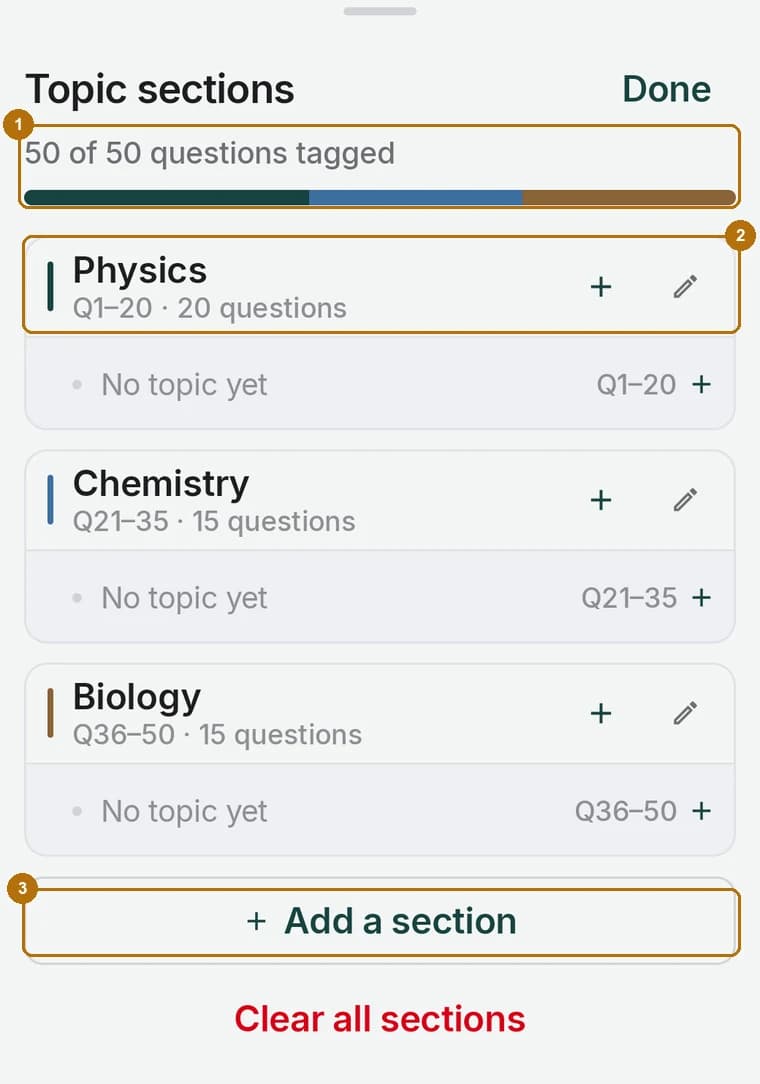
A counter 1 keeps telling you how many questions are still untagged, and a colour bar shows the split at a glance. Each section 2 carries its own question range, so you are only ever changing the end number — the next section starts where the last one finished. Adding another 3 takes one tap.
Then every scanned sheet comes back split the same way.
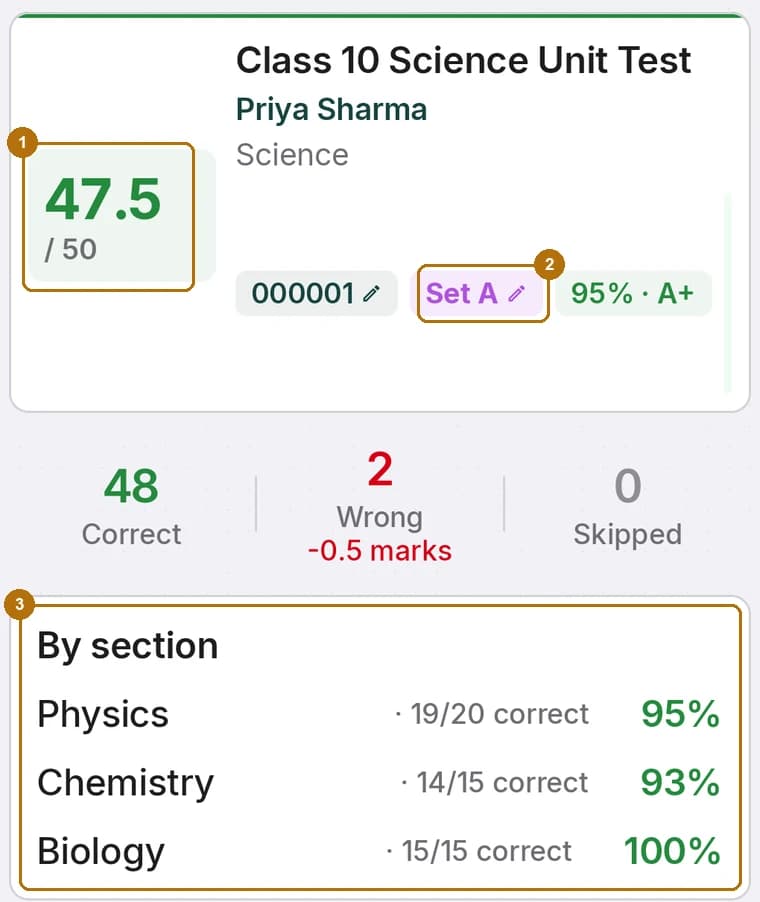
The total 1 is what goes on the report card. The By section panel 3 is what you teach from: 19 of 20 in Physics and 14 of 15 in Chemistry are two very different conversations, and neither is visible in 47.5. The set this sheet belongs to 2 is read off the paper too — more on that below.
Across a class, the same tagging drives the subject and topic breakdowns in the result analysis and in the printed progress reports.
2. Two hundred questions on one side of one sheet
Plenty of apps stop at 50 or 100 questions, which quietly rules out every serious mock test. A full NEET paper is 180 questions. A state PSC paper can run to 200. Splitting one of those across two answer sheets doubles the printing, doubles the scanning and gives you two half results to join up by hand afterwards.
In ScanScore you type the number of questions and the app picks the layout. Ask for 200 and it switches templates for you.
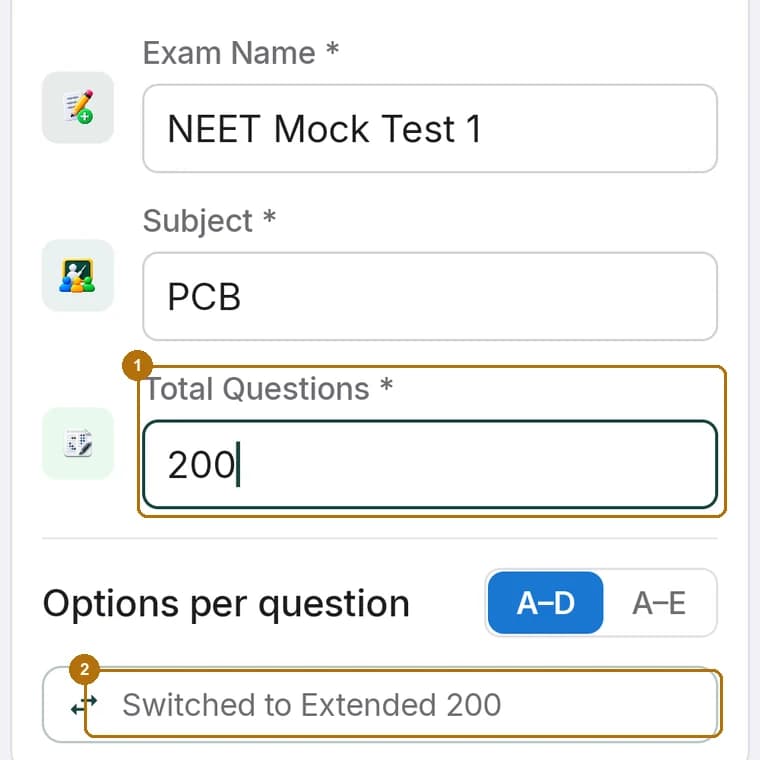
The question count 1 is the only decision. The notice underneath 2 is the app telling you it has moved to the Extended 200 sheet — five columns of forty — because nothing smaller would fit.
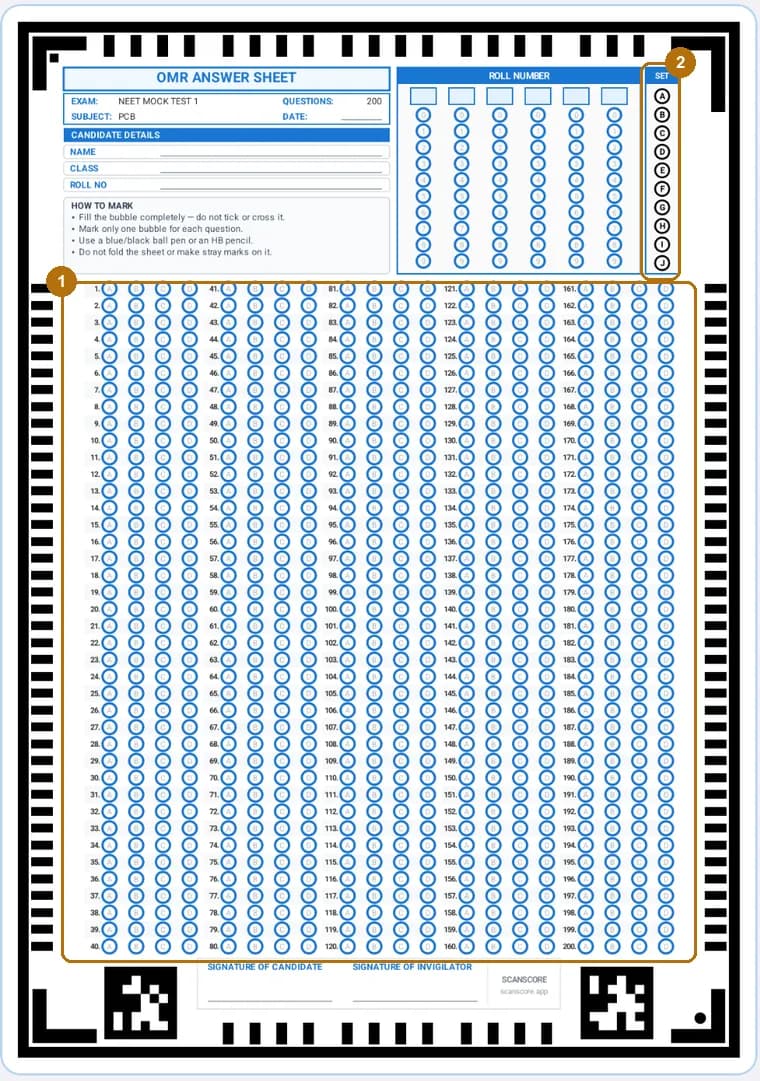
Questions 1 to 200 sit in five columns of forty 1, with the roll number grid and the candidate block above. The black bars along the edges and the blocks in the corners are what the camera locks on to, which is why the sheet has to be the one ScanScore generated rather than another vendor's form. It prints on ordinary A4 on any printer, in black and white.
| Paper | Questions | Sheets needed |
|---|---|---|
| Class unit test | 20–50 | 1 |
| Term exam objective section | 40–60 | 1 |
| Bank or SSC mock | 100 | 1 |
| NEET full paper | 180 | 1 |
| State PSC with an A–E option | 200 | 1 |
3. Up to ten question paper sets inside one exam
If you shuffle the paper into Set A, B, C and D to stop copying, the obvious trap is to build four exams — four answer keys, four result lists, four of everything, and a filing problem at the end when you want one rank list.
ScanScore keeps it as one exam with one result list. You say how many sets you printed, up to ten.
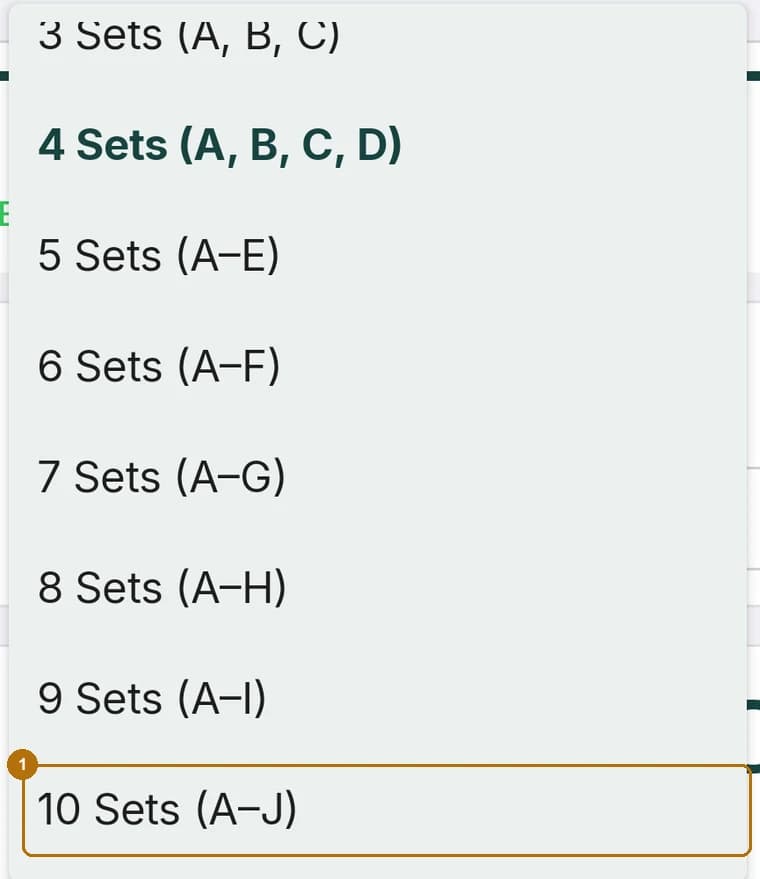
Choosing more than one set 1 changes the printed sheet: the instructions box is replaced by a set-code block — the SET column you can see running A to J down the right of the sheet above. The student darkens their set, and the scanner reads it the same way it reads the roll number. A Set C sheet is never marked against Set A's key, because the app is not guessing.
Each set then gets its own key inside the same exam.
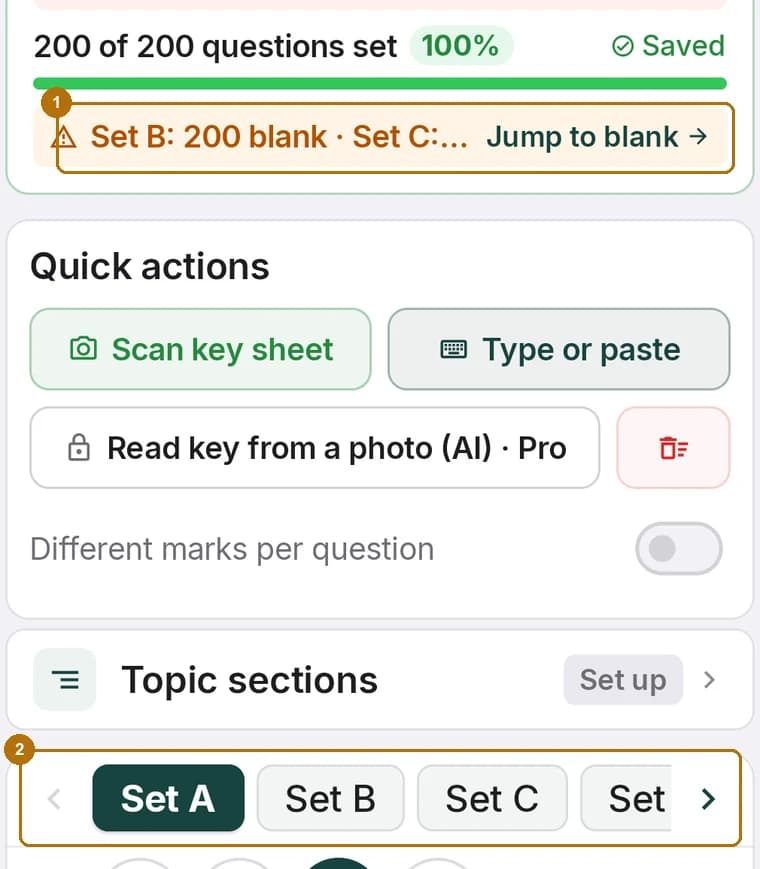
The tabs along the bottom 2 move between sets; the strip at the top 1 names the ones still blank and Jump to blank takes you straight to the next gap. Scanning stays locked until every question of every set is keyed, which is deliberate — a half-keyed multi-set exam marks half the hall against nothing.
4. Batch scanning, for the stack rather than the sheet
One sheet at a time is fine for a quiz. For 150 sheets, the tapping is the job: aim, press, wait, dismiss, next. ScanScore offers both, and the second one is the one that matters in exam week.
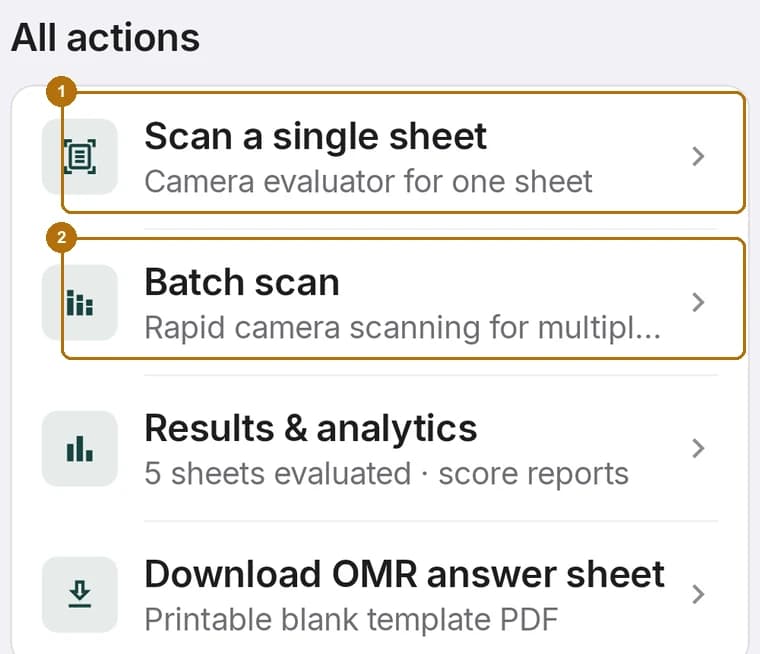
Single-sheet mode 1 reads one paper and shows you the result. Batch mode 2 keeps the camera open and the counter running in the header, so the sheets go through in one motion: slide one away, drop the next one down, and keep going.
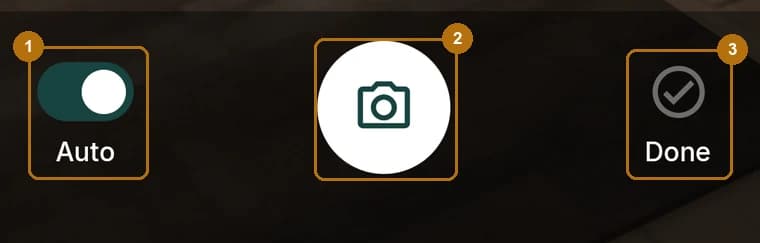
Auto 1 is on by default and is what removes the tapping. The app watches the corner markers, and the moment a sheet is square and steady it captures on its own — then it will not fire again until that sheet leaves the frame, so one paper cannot be read twice in a row while you reach for the next. The shutter 2 stays available for a sheet that will not settle, and Done 3 closes the run.
While you are aiming, the app is already reading: the score and the ticks update live from the preview before anything is saved, so a misfed or upside-down sheet shows itself immediately rather than at the end of the stack.
5. Sharing an exam with the rest of the staff room
In a coaching centre the same test is usually run by several teachers. Building the exam, the sheet and the key once and handing it over beats three people doing the same hour of work, and it removes the version problem where two teachers mark against slightly different keys.
ScanScore shares an exam the way a document is shared: add people by email as Can edit or Can view, see who already has access, change or remove anyone, and optionally turn on a share code for people who should be able to join themselves. Only the owner can change who has access. Sharing a folder shares everything inside it.
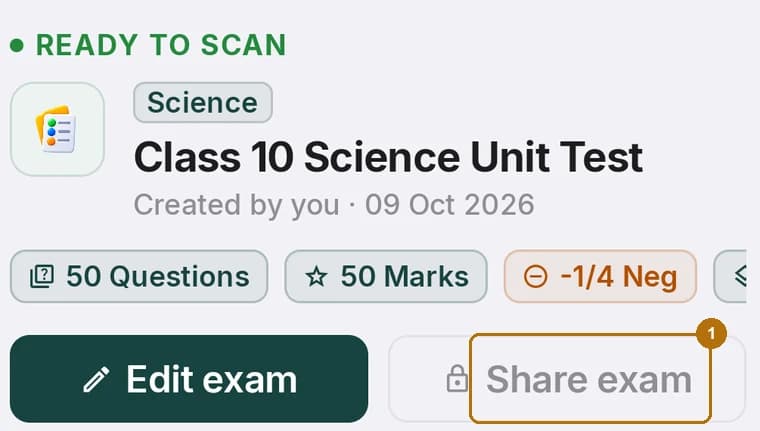
It is worth being plain about this one. Everything else on this page — creating the exam, printing the sheet, the 200-question template, all ten sets, the keys, topic tagging, scanning, batch scanning and the results — works free, offline and without an account. Sharing an exam with another person by email or code is part of the Pro plan 1, because it travels through the cloud rather than staying on the phone. If you only ever mark your own classes, you will never meet this screen.
The smaller things that come with them
None of the five stands alone. Behind them sit the parts that make an exam week work: a choice of sheet templates and colours, your school's name and logo printed across the top, class rosters so a roll number becomes a name, organisation accounts when more than one teacher is marking, negative marking rules that match the exam you are imitating, CSV and PDF export, and a rank list that is ready before the papers are off the desk.
The features above are the ones that decide whether the app fits your exam. The rest decide how pleasant the afternoon is.
ScanScore is an Android app, and every screenshot above is the app itself rather than a mock-up. If you are starting from nothing, the complete setup guide walks through a first exam end to end — create it, print the sheet on plain A4, and hold the camera over the first paper.